
How to Summarize a Facebook Video or Reel with AI
TL;DR: To summarize a Facebook video, copy its link (Share → Copy link), paste it into PageSum and pick a summary mode. It works for public videos, Reels and Live replays, with or without captions: when there are none, PageSum transcribes the audio with AI. The free plan includes 1 video a day; Pro is unlimited. You also get the transcript, which you can copy or download.
Facebook is full of useful video: news clips, recipes, gardening tips, product demos and hour-long Live sessions. Most of it has no captions and no chapters, so the only way to find the one useful minute is to watch the whole thing. A summary lets you read the point first and watch only if it's worth it.
How to Summarize a Facebook Video
- Copy the link. On the video or Reel, tap Share, then Copy link. On a computer, you can also copy the address from the browser bar.
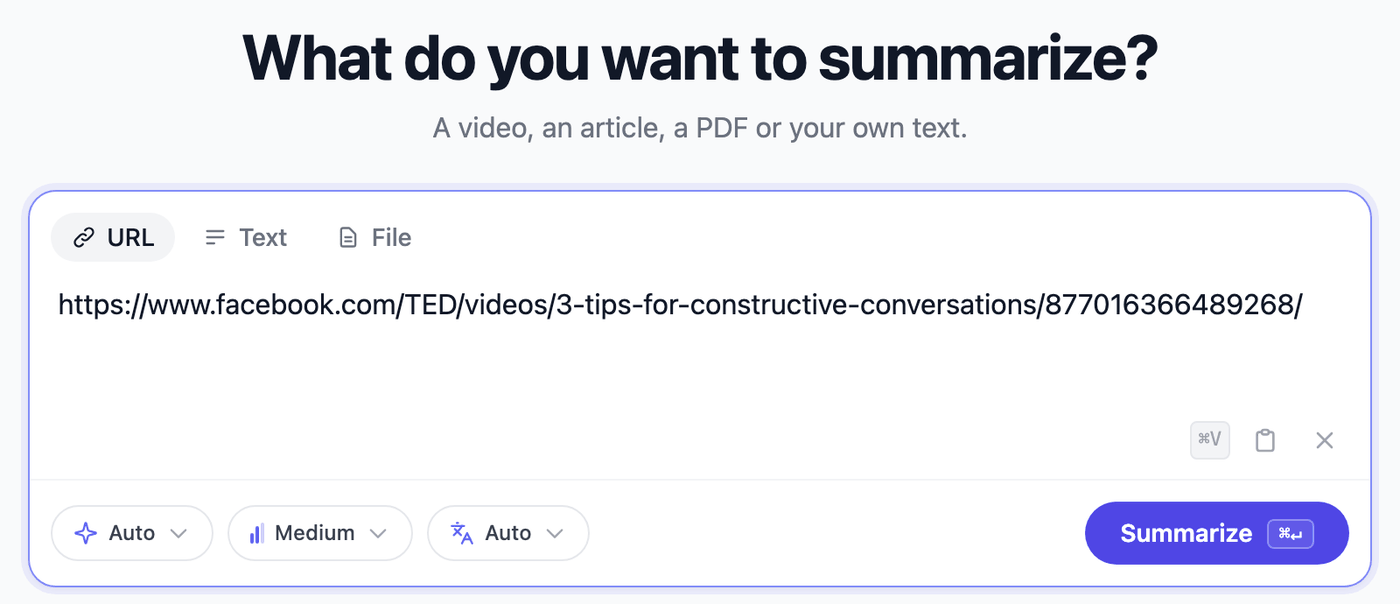
- Paste it into PageSum. Go to pagesum.app/dashboard and paste the link into the URL field.
- Pick a summary mode. Quick gives a short overview; Key Points gives a list you can act on. Pro adds four more modes.
- Read the summary. It usually takes a few seconds for a Reel, a bit longer when the audio has to be transcribed.
The summary opens with the transcript next to it, so you can check any point against what was actually said.
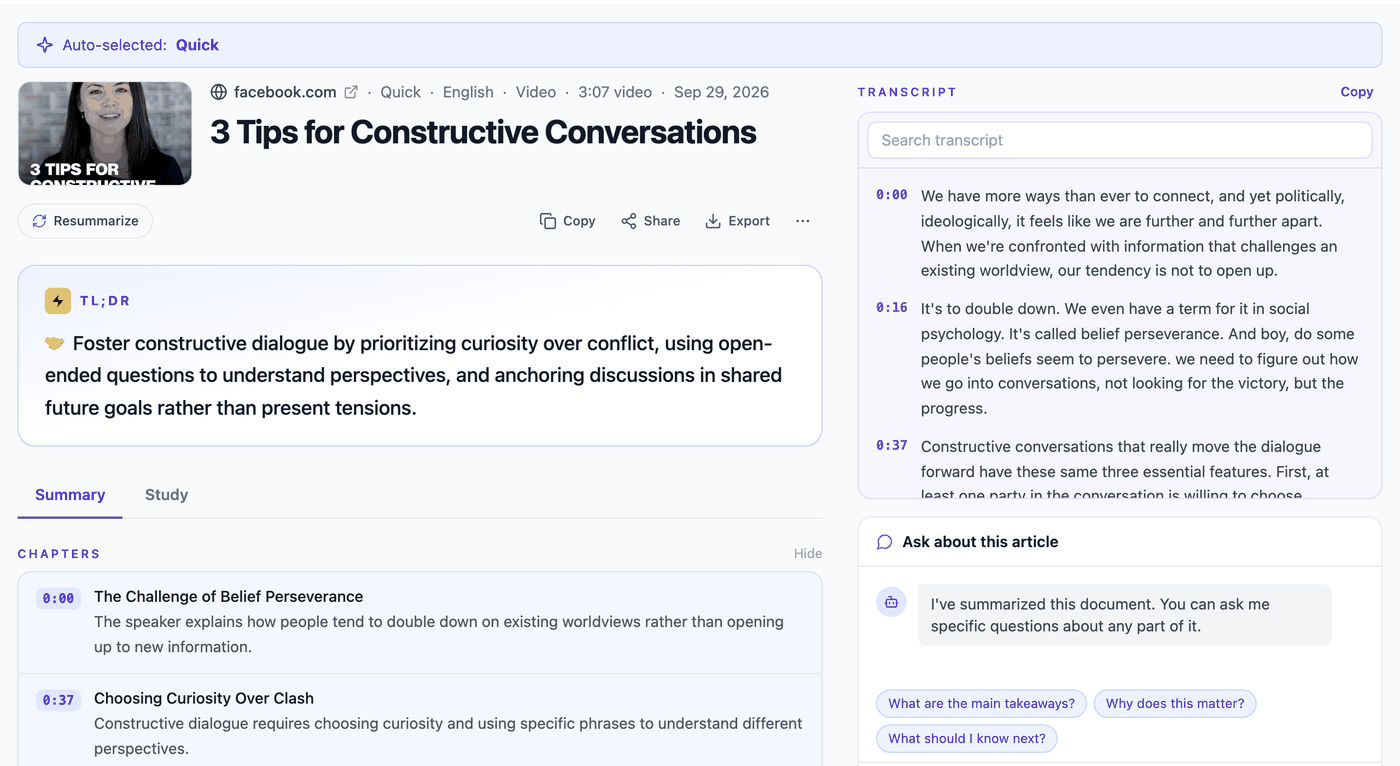
Pro view. On the free plan the transcript is the same text, without the timestamps.
From the Facebook App on Your Phone
On a phone you can skip copying the link:
- Android: open pagesum.app in Chrome and sign in. After your first summary, tap Install when PageSum offers it, or use Chrome's menu → Add to Home screen → Install. From then on, tap Share on any Facebook video or Reel and pick PageSum. The summary starts on its own.
- iPhone: in the Facebook app tap Share → Copy link, then open pagesum.app in Safari and tap Paste link. The summary starts on its own. (iOS doesn't let web apps appear in the Share menu, so copying the link is one extra step.)
Which Facebook Links Work
Anything public that plays as a video:
- Reels:
facebook.com/reel/…and share links likefacebook.com/share/r/… - Videos:
facebook.com/watch/?v=…,facebook.com/share/v/…and videos posted on Pages - Live replays:
facebook.com/watch/live/?v=…, once the Live has ended - Short links:
fb.watch/…
What doesn't work: videos in private groups, friends-only posts, Lives that are still running, and videos with only background music. PageSum summarizes what people say, so a video needs someone talking.
Videos Without Captions
Most Facebook Reels have no captions. Many summarizers stop there. PageSum checks for captions first and, if there are none, transcribes the audio with AI before summarizing.
AI transcription costs more than reading captions, so it has a length cap. Longer videos aren't refused: PageSum summarizes their start.
| Free | Pro | Max | |
|---|---|---|---|
| Video summaries per day | 1 | Unlimited | Unlimited |
| Videos with captions | Any length | Any length | Any length |
| Videos without captions | First 5 minutes | First 25 minutes | First 90 minutes |
| Summary modes | Quick, Key Points | All 6 | All 6 |
| Transcript copy and download | Yes | Yes | Yes |
| Timestamped transcript synced to the video | No | Yes | Yes |
Most Reels are under 3 minutes, so they're summarized in full on the free plan. For a long Live replay, the summary covers its opening, which is usually where the host says what the session is about.
Summarizing a Facebook Video in Another Language
Facebook shows you videos from everywhere. PageSum writes summaries in 36 languages, and by default in the language of the video. Pick a different output language to read a Thai news clip or a Hindi explainer in English, or an English video in Spanish.
Tips for Better Summaries
- Use Key Points for how-to videos. Recipes, repairs and gardening Reels turn into a list of steps.
- Ask a follow-up question. "What temperature did she use?" or "Which brand was that?" The free plan includes 1 question a day.
- Keep the transcript. Copy it or download it as TXT, SRT or VTT from the export menu. See how to get a Facebook Reel transcript.
- Save to a collection. Every summary lands in your history, so the tip you saw last week is one search away.
Frequently Asked Questions
Can AI summarize a Facebook video? Yes. Paste the link into PageSum and it summarizes what is said in the video. It uses the captions if there are any, and transcribes the audio with AI if there aren't.
Is there a free Facebook video summarizer? Yes. PageSum's free plan includes 1 video summary a day in Quick or Key Points mode, including AI transcription for videos without captions. No credit card is needed.
Can I summarize a Facebook Reel?
Yes. Copy the Reel's link with Share → Copy link and paste it into PageSum. Short links like facebook.com/share/r/… work.
Can I summarize a Facebook Live? Yes, once it has ended and the replay is public. If the replay has no captions, PageSum summarizes its first 5 minutes on the free plan, its first 25 minutes on Pro and its first 90 minutes on Max.
Do I need a Facebook account? No. PageSum only needs a public link. You need a free PageSum account to summarize videos.
Does it describe what's shown on screen? No. It summarizes the spoken content. On-screen text and music aren't part of the summary.
Summarize a Facebook video free · Related: How to Summarize TikTok and Instagram Videos · How to Summarize a Video With No Captions · En español · Em português · En français · বাংলায় · بالعربية
Try it on your video
Paste a TikTok, Instagram Reel, Facebook, X or YouTube link and get the transcript and a summary in seconds. Free, no credit card.
More posts
PageSum vs NoteGPT vs Eightify: Which YouTube Summarizer to Use
An honest comparison of PageSum, NoteGPT and Eightify for summarizing YouTube videos: platforms, videos without captions, pricing and who each tool is best for. Checked September 2026.
How to Summarize Long YouTube Videos and Podcasts
How to get a useful summary of a 1-hour lecture, podcast or livestream replay on YouTube: which mode to use, how chapters help, and what to know about very long transcripts.
How to Summarize a YouTube Video With No Captions
Most summarizers fail when a YouTube video has no subtitles. Here's how PageSum transcribes caption-less videos with AI, what the length limits are, and what to do when a video is too long.
5 Best Video Summarizer Tools in 2026 (Free & Paid)
Comparing the best AI video summarizer tools in 2026: PageSum, Summarize.tech, NoteGPT, Notta, and Kagi. Honest breakdown of features, limits, and which one is actually worth using.
How to Summarize TikTok and Instagram Videos with AI
Paste a TikTok, Instagram, X or Facebook video link into PageSum and get an AI summary. Explains when it works, what limits apply on the free and Pro plans, and why some videos can't be summarized.
How to Summarize a YouTube Video Without Watching It
Paste a YouTube link into PageSum to get an AI summary from the video's transcript. Covers free vs Pro limits, what to do when a video has no captions, and which summary mode to use.